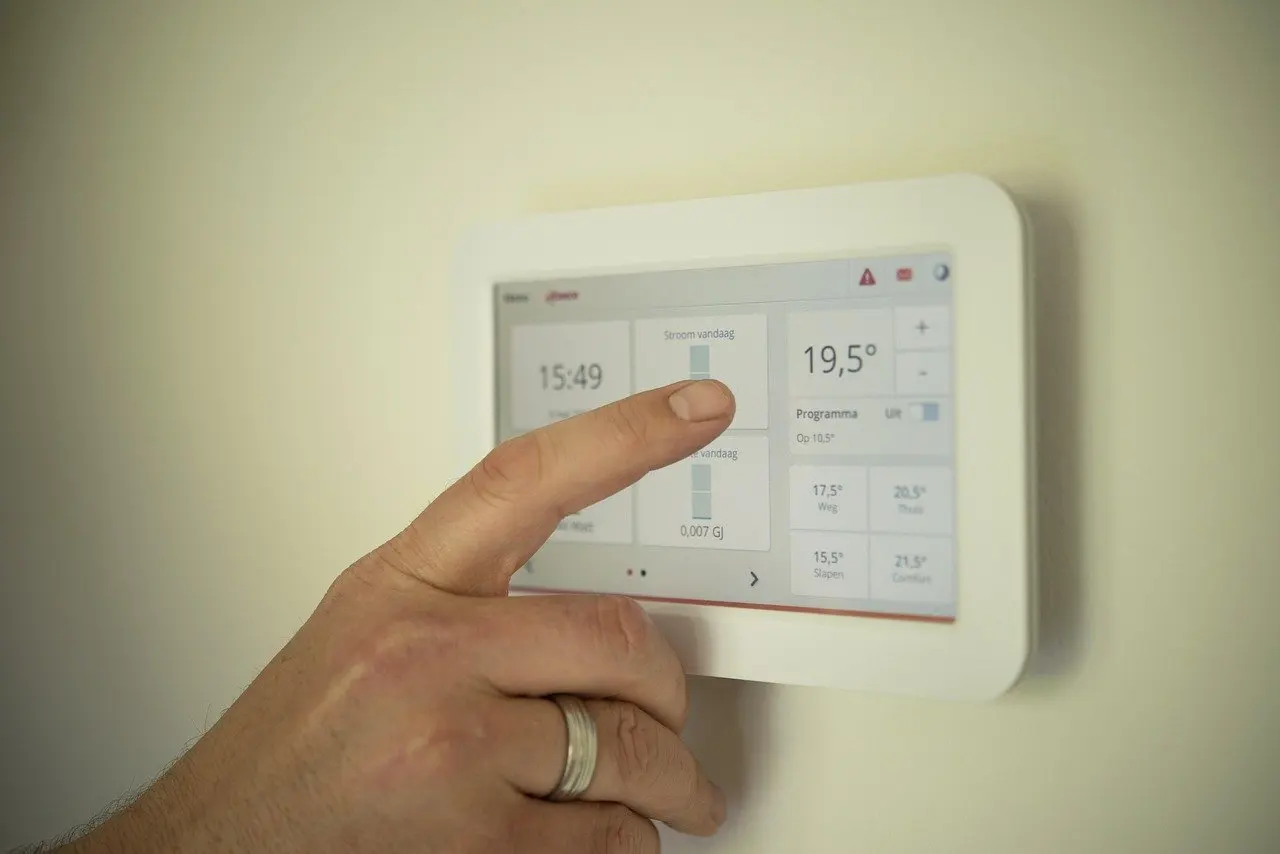
A new smart thermostat is in the cart, but the wall behind the old one hides a bundle of coloured wires. Here is how to install a smart thermostat without guessing: check the wiring first.
Quick answer: Photograph and label every wire, run the manufacturer’s compatibility checker, switch off HVAC power at the breaker, then mount, wire, connect to Wi-Fi and test. This Old House says most DIYers can finish in under an hour. Stop and call a professional if any step is unclear.
This job is one stage of a wider project. For the bigger picture, see how to set up a smart home. The thermostat is often the first device that touches the home’s wiring, so it deserves more care than a plug-in gadget.
What you need before you start
The job needs a few basic items and a clear head about what you are connecting to. A smart thermostat replaces the wall control for your HVAC system and talks to your home Wi-Fi. It does not change the furnace or air conditioner itself.
- A phone or camera. You will photograph the existing wiring before touching anything.
- Masking tape and a pen. These label each wire to match its terminal, as an energy-services installation guide advises.
- A voltage tester. The same guide lists one to confirm that power is really off.
- Your Wi-Fi details. The thermostat joins your home network during setup.
The expected outcome is a thermostat that heats and cools as before, reports to an app, and can adjust itself over time. The first stage costs nothing and is where most failed installs could have been caught.
Step one: check wiring and compatibility before buying
The simplest and cheapest intervention is a look at what is already on the wall. This Old House advises checking your current wiring and consulting the manufacturer’s compatibility guide before purchasing, so do this before spending money.
Photograph and label the existing wires
Pull the cover off the old thermostat and take a photo of the wire connections for reference. Then label each wire with masking tape to match the terminal it sits on, for example R for the red wire and G for the green wire. Terminals are marked with letters such as R, W, Y, G and C, and those letters are what the new thermostat’s instructions will refer to.
Take the photo with the labels visible. Keep it handy when you shop, because both the compatibility checker and the new thermostat’s wiring diagram will ask what is connected where.
Run the manufacturer’s compatibility checker
Most manufacturers provide compatibility checkers on their websites, according to the energy-services guide above. Enter your system details and the wires you photographed. This is also the way to answer “is my thermostat compatible with Nest?”: use Nest’s own checker with your wiring photo rather than relying on a general rule.
System type matters. This Old House notes that most smart thermostats work with conventional forced-air systems, but homes with baseboard heating may need specific models. If your heating is not forced air, treat a passing checker result as a requirement before checkout, not a formality.
Decide whether you need a C-wire
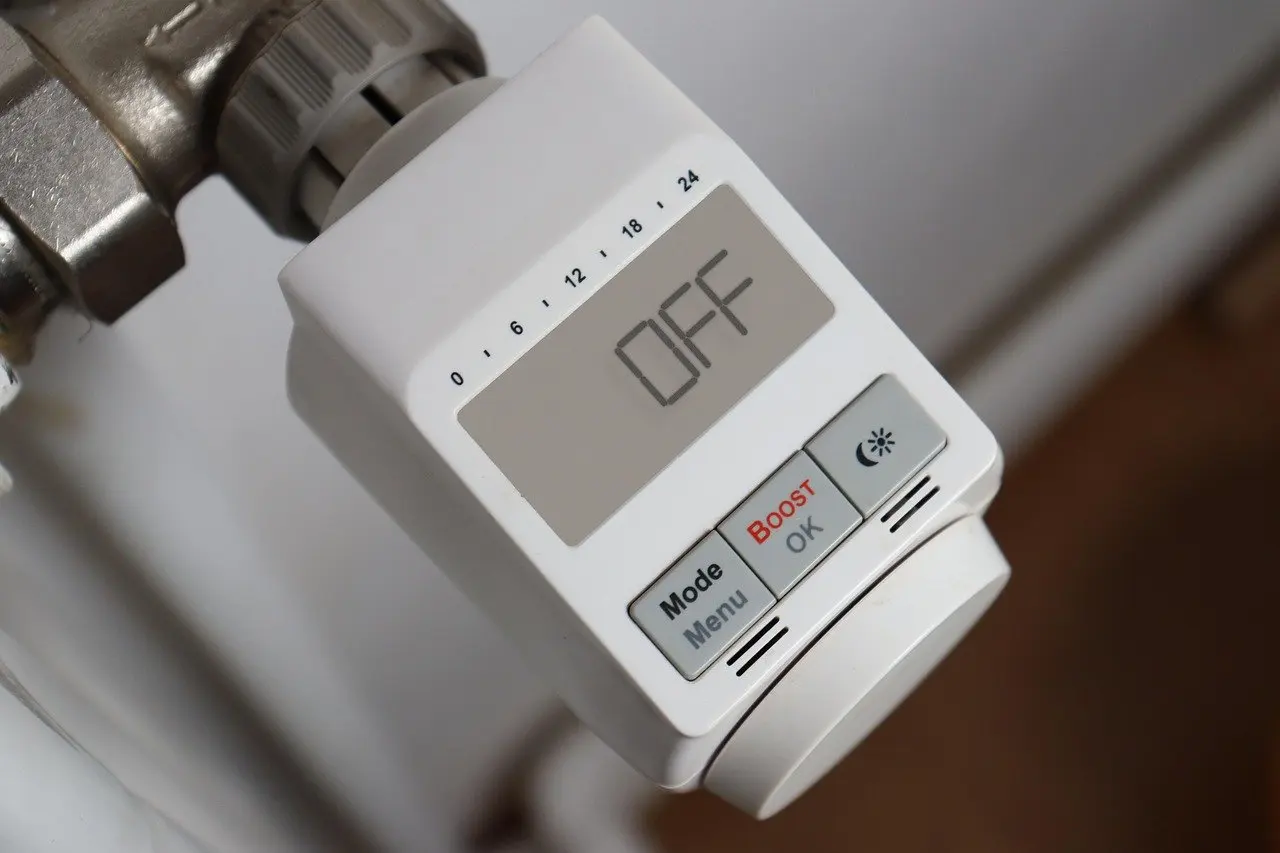
The C-wire, or common wire, provides continuous low-voltage power, as an HVAC installer’s guide to low-voltage wiring explains. Many smart thermostats require one to maintain constant power, but older homes often lack one, according to This Old House.
The installer guide adds that the difference between an old 24V system and a modern one is often this continuous power source. So look for a wire on the C terminal in your photo. If one is there, you are in good shape. If not, the escalation section below covers your options. Either way, the answer to “do I need a C-wire?” is: check the thermostat’s checker result for your specific model.
Step two: switch off power and remove the old thermostat
Turn the power to your HVAC system off at the circuit breaker before beginning, as This Old House instructs. The energy-services guide recommends confirming with a voltage tester that power is really off, so use it at the thermostat wires and do not rely on the breaker label alone.
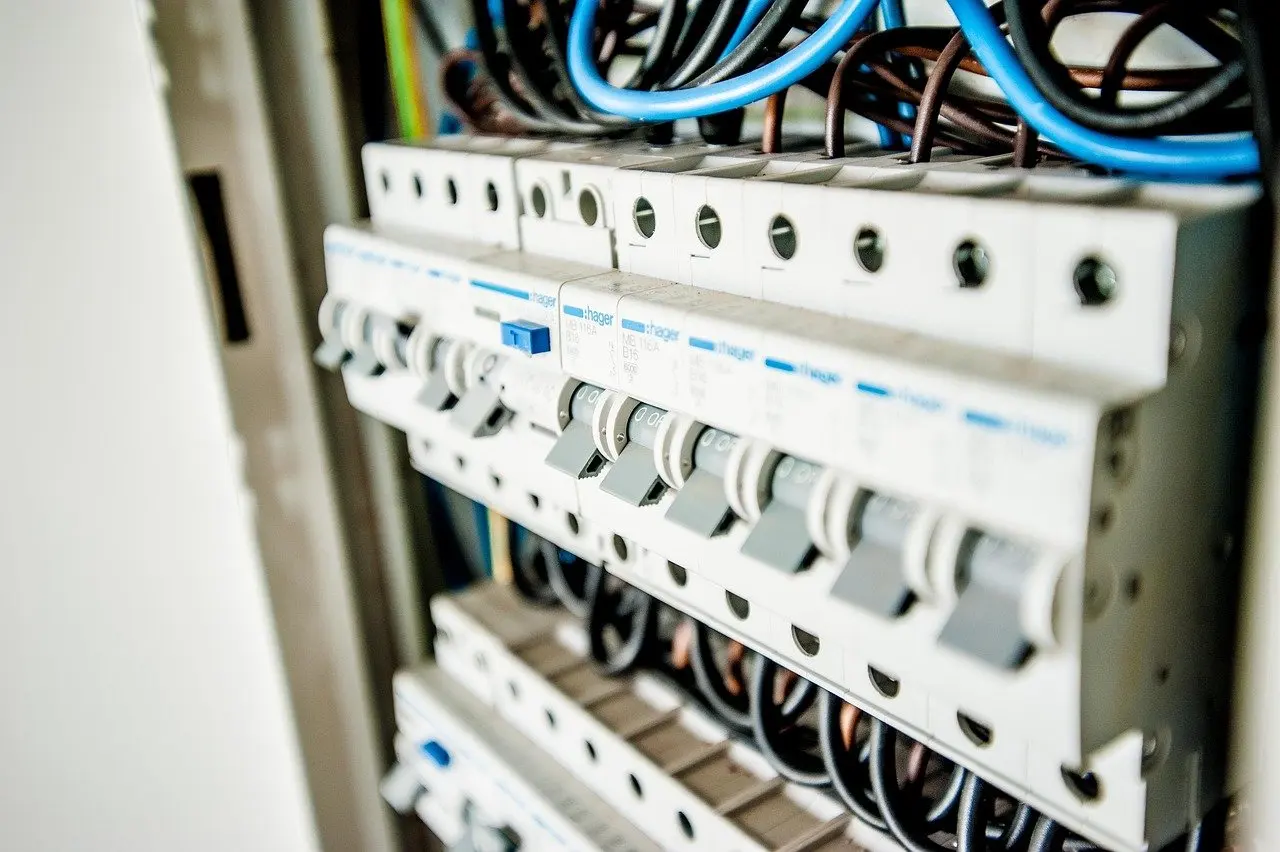
- Switch off the HVAC breaker.
- Test the thermostat wires with the voltage tester.
- Check that the photo and the tape labels match the terminals you can see.
- Disconnect the labelled wires one at a time and remove the old backplate.
If the labels, the photo and the wall do not agree, stop here. Clearing up the mismatch is cheaper than a wrong connection.
Step three: mount the new thermostat and connect the wires
Fix the new backplate to the wall and connect each labelled wire to the terminal with the matching letter. The new thermostat’s manual and your photo are the references. Match by terminal letter, not by colour alone, which is why the tape labels exist.
Once every wire is seated and the display unit is attached, restore power at the breaker. The thermostat should light up. Some models carry backup batteries, and This Old House notes these may need replacement every few years, so check the model’s power details when you choose.
A blank screen after restoring power points back to the power question: check for a missing C-wire, a wire on the wrong terminal or the breaker still being off. Switch the power off again before changing any wire.
Step four: connect to Wi-Fi and the app
During setup the thermostat connects to your home’s Wi-Fi network, and the maker’s app usually guides the pairing. Have your network name and password ready and install the app before you start.

If the connection fails, This Old House advises making sure the thermostat is within range of your router. Moving the router or adding a Wi-Fi extender is a better fix than relocating the thermostat, which is limited by where its wires come out of the wall.

If you already use smart plugs, the pairing flow will feel familiar; how to set up a smart plug covers the same app-and-Wi-Fi routine in a lower-stakes device. A doorbell is the other common wiring-based project, and how to install a video doorbell follows the same photograph-first habit.
Step five: test the system and set it up to save energy
After installation, test your HVAC system to ensure everything is functioning properly, as the energy-services guide advises. Run heating and, if you have it, cooling, and confirm that the equipment responds to the new thermostat.
Let it learn, then set targets
After about a week of manual adjustments, many smart thermostats will start to program themselves, according to This Old House. Adjust it as you normally would during that time and avoid constant overrides.
What savings are realistic
The energy-services guide says a smart thermostat can save up to 10-15% on heating and cooling costs annually. That is a ceiling for good conditions, not a promise. The setback arithmetic is simpler: the U.S. Department of Energy guidance, as relayed by This Old House, puts savings at about 1 percent of fuel for every degree you lower the target temperature for eight hours. Its recommended settings when you are awake and at home are 68 degrees Fahrenheit (20 degrees Celsius) in winter and 78 degrees Fahrenheit (26 degrees Celsius) in summer.
Leaky ducts can undo the gain. The HVAC installer’s guide says that addressing poor duct integrity can often negate the savings you were expecting, so a thermostat will not rescue a poorly sealed system.
When to escalate: missing C-wire and professional help
Escalate only when a checkpoint fails, and stop at the first step that solves the problem. Most problems fall into the cases below.
| Checkpoint | What to confirm | If it fails |
|---|---|---|
| Wiring photo and labels | Every wire is labelled by terminal letter | Redo the photo and labels before buying |
| Compatibility checker | Model passes for your system type, including baseboard heat | Choose a model the checker approves for your system |
| C terminal | A wire is connected for continuous low-voltage power | Use a C-wire adapter or power extender kit, or get help |
| Power | Breaker is off and a voltage tester agrees | Do not touch the wires until it does |
| Wi-Fi | Thermostat is within range of the router | Improve coverage before repeating setup |
| Final test | Heating and cooling respond to the thermostat | Switch power off and recheck the wire labels |
These checkpoints draw on the guidance from This Old House and the energy-services guide.
With no C-wire, the energy-services guide says you might need a C-wire adapter or a different solution. That is where a power extender kit or a professional comes in. Use a professional whenever you feel unsure: This Old House strongly recommends consulting one if you are unsure about any step.
Choosing a thermostat as a beginner
The best thermostat for a beginner is the one your wiring supports. Brand matters less than the checker result, so shortlist models only after the compatibility check passes for your system.
- Wiring fit. Prefer a model that works with the wires you already have, so you avoid adapters on a first install.
- Self-programming. A model that learns your schedule after about a week of manual adjustments saves you from building a programme by hand.
- Maintenance. If a model uses backup batteries, remember they may need replacing every few years.
- Ecosystem. Pick an app that sits well with the rest of your devices if you plan to build out a smart home.
Frequently asked questions
How long does installing a smart thermostat take?
This Old House says most DIYers should be able to complete the job in under an hour. Photographing and labelling the wires beforehand is part of what keeps it that short.
Is my thermostat compatible with Nest?
Use the manufacturer’s checker on its website, with your wiring photo to hand. Most manufacturers provide one. Heating type matters too, since baseboard systems may need specific models.
What if the thermostat will not connect to Wi-Fi?
Make sure the thermostat is within range of your router. If it is not, improve the router’s coverage rather than moving the thermostat.
Do the batteries in a smart thermostat need replacing?
Some models do have backup batteries, and these may need replacement every few years, according to This Old House. Check your model’s power details.
Should I hire a professional?
Yes, if you are unsure about any step, or if your system lacks a C-wire and an adapter does not solve it. Photos and labels give the professional a clear starting point.