Want a lamp on a schedule? To learn how to set up a smart plug: plug it in, pair it through the maker’s app, and give it a 2.4 GHz Wi-Fi network, because 5 GHz networks are not supported.
A smart plug is one of the simplest first devices in a connected home. The same habits carry over to the rest of a how to set up a smart home plan, and the list of uses below shows where a plug earns its place.
- Network first: the plug needs a 2.4 GHz connection. A 5 GHz-only network will not work.
- App and account: a TP-Link Kasa plug needs the Kasa app and a TP-Link account.
- Light signal: a Wi-Fi light blinking orange and green means the plug is ready to pair.
- Load check: compare the rating on the plug with the label on the appliance before relying on it.
Before you start: network, app and account
A smart plug setup depends on three things being ready before the plug goes into the wall: a compatible Wi-Fi band, the manufacturer’s app and an account. TP-Link’s setup guide, last updated April 17, 2026, uses a Kasa smart plug as its example, and it states that the plug requires a 2.4 GHz Wi-Fi connection and does not support 5 GHz networks. Other brands run on their own apps, so follow your plug’s own instructions for the exact screens. The network and app checks below apply to any plug that shares these limits.
Check the Wi-Fi band
Many home routers broadcast both a 2.4 GHz and a 5 GHz network. If they share one name, the phone may sit on the 5 GHz side during setup, which is a common reason pairing stalls. Check that your router offers a 2.4 GHz network and know its name and password before you begin.
Install the app and sign in
TP-Link states that the Kasa app is required to connect a Kasa plug to Wi-Fi and that a TP-Link account is needed to use the app. On an iPhone running iOS 14 or later, Local Network access must be enabled for the Kasa app before setup. Turn that permission on first, because skipping it can look like a Wi-Fi fault later.
Pick the outlet
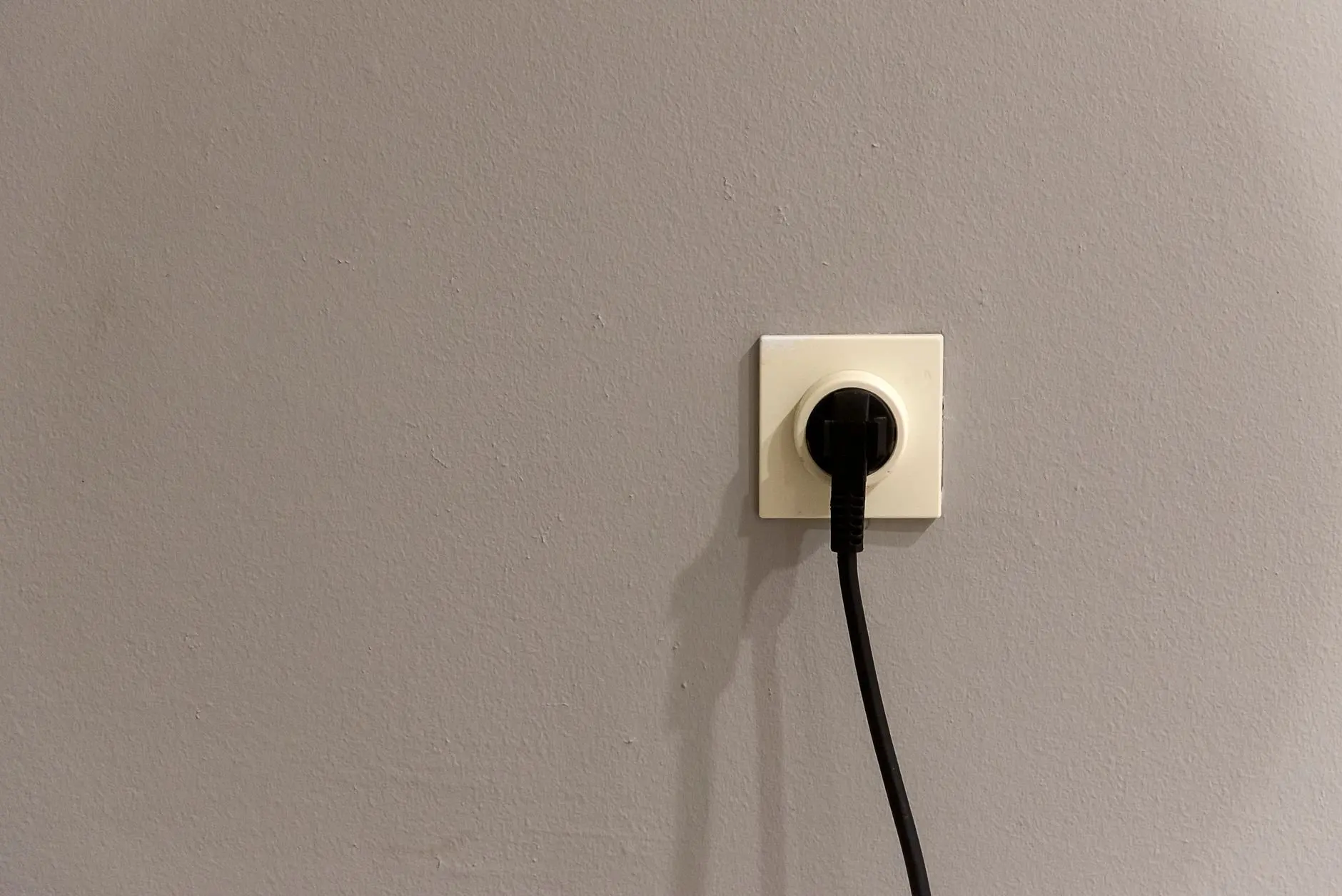
Plug the device into the wall outlet where it will live, close enough to the router for a steady signal. Use an outlet you can reach, since the plug has a reset button you may need to press.
Pairing the plug in the app
Pairing means putting the plug in setup mode and letting the app hand it your home network details. TP-Link describes the sequence in its guide, and the steps below follow it.
- Open the app and add a device. Sign in to the Kasa app with your TP-Link account and choose to add a smart plug.
- Watch the Wi-Fi light. Wait for the Wi-Fi indicator light to blink orange and green. That pattern means the plug is in setup mode.
- Connect to the plug. On Android, the app searches automatically, which takes about one minute. On iOS, the plug creates its own network that appears as TP-LINK_Smart Plug_XXXX, and you join it from the phone’s Wi-Fi settings.
- Ignore the internet warning. While the phone is joined to the plug’s network, it may show a “No Internet Connection” warning. That is expected at this stage.
- Choose your home network. Pick your 2.4 GHz network and enter its password. If it is not listed, enter the network name (SSID) and password manually.
- Name the plug. Pick a descriptive name such as Living Room Lamp so it is easy to find in the app and to call by voice later.
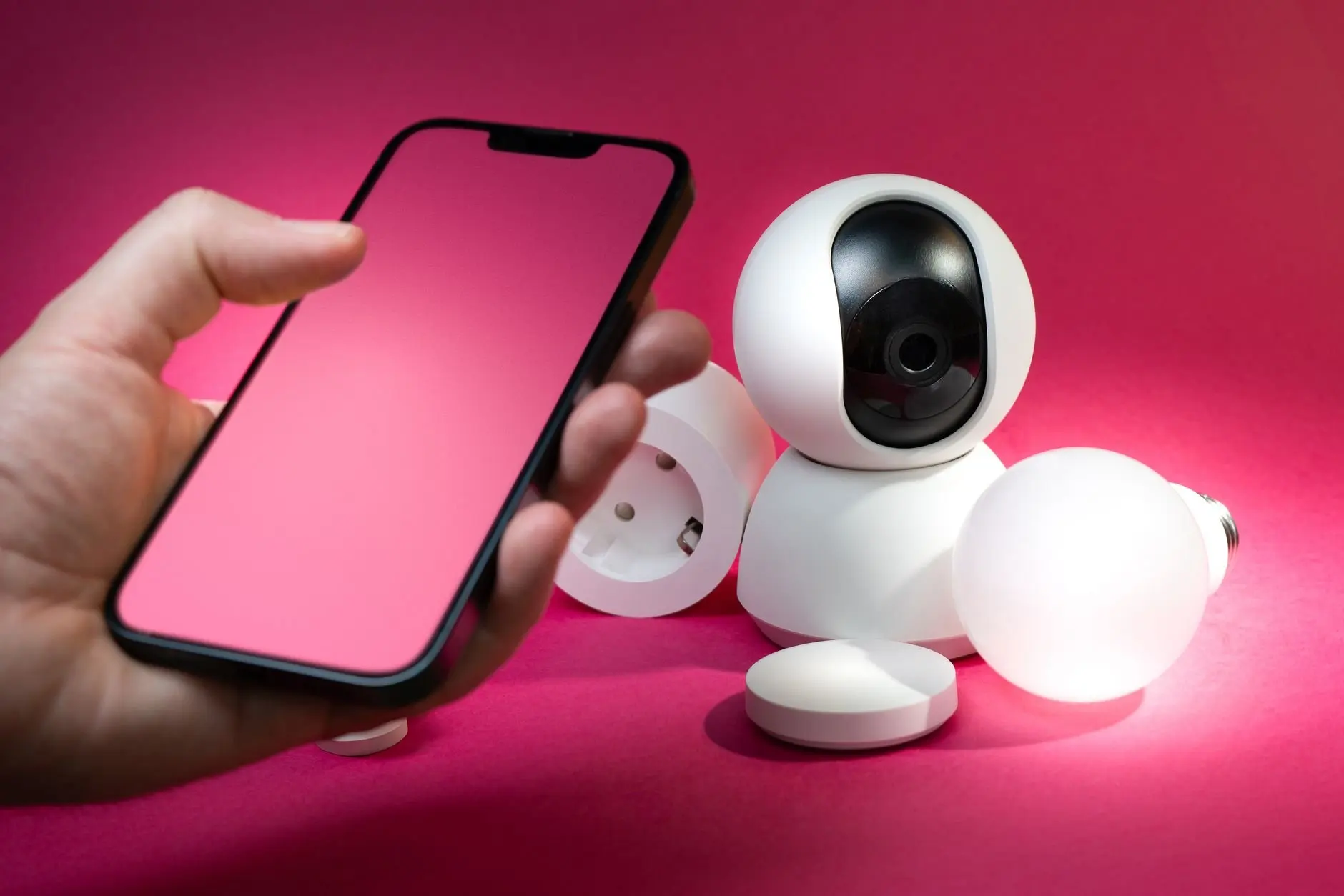
Once the plug appears in the app, switch it on and off from the phone to confirm that it responds before you plug the real appliance in.
When a smart plug will not connect to Wi-Fi
A smart plug that refuses to join Wi-Fi is usually stuck on the band, the permission or the setup mode. Work through the causes in order, starting with the cheapest check.
| Symptom | Likely cause | Planning use |
|---|---|---|
| Home network not accepted or not visible | Network is 5 GHz only; the plug supports 2.4 GHz only | Enable or select the 2.4 GHz network, then repeat pairing |
| Light does not blink orange and green | Plug is not in setup mode | Reset the plug, then wait for the blinking pattern |
| iPhone cannot find the plug | Local Network access off for the app on iOS 14 or later | Enable the permission for the Kasa app, then retry |
| “No Internet Connection” warning on the phone | Phone is joined to the plug’s own network | Expected during setup; continue to the home network step |
| Home network missing from the list | Network not broadcast or not shown | Type the SSID and password manually |
| Setup stops before finishing | Interrupted pairing | Press the reset button on the plug and try again |
These conditions come from TP-Link’s Kasa smart plug setup guide.
If you have a smart plug that is not connecting to Wi-Fi, start with the band, since it is the most common cause and the quickest to rule out. Reset only when the light fails to show the blinking pattern or setup cannot be completed. A reset clears the pairing, so it is a last step rather than a first one.
Practical uses for a smart plug
The best beginner uses are the ones where a plain on/off switch solves a real annoyance. TP-Link notes that the app’s advanced settings include Schedule, Timer and Away mode, and that the plug can be linked to Amazon Echo or Google Home for voice control. These ideas lean on those features.
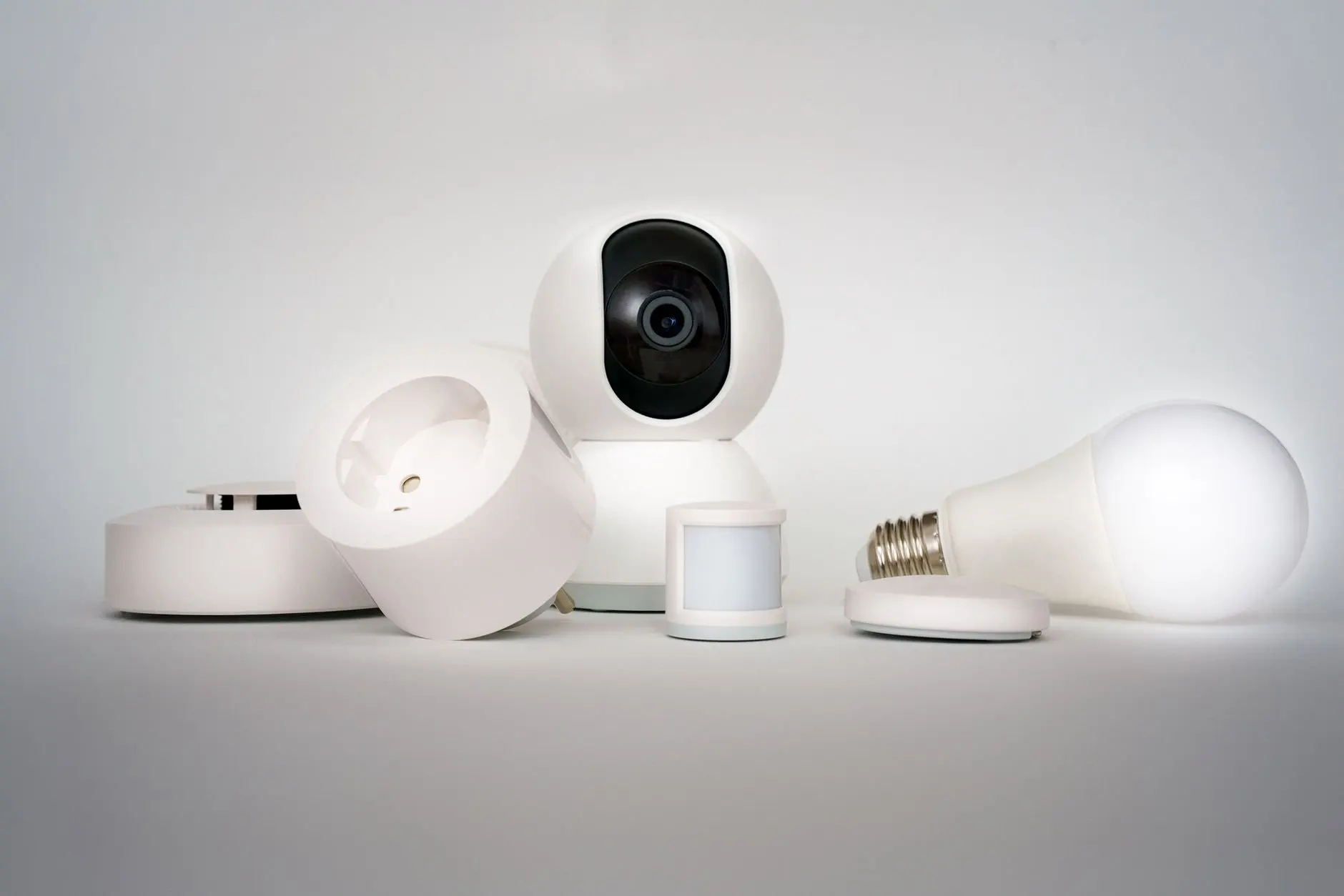
- Lamp on a schedule. Set a lamp to switch on at a regular time. It suits anyone who dislikes entering a dark room, and a plug named Living Room Lamp is easy to include in voice commands.
- Away mode for an empty home. Away mode in the app is aimed at making a house look occupied while you are out. It suits short trips, and it works best with a lamp rather than a heavy appliance.
- Timer for a small appliance. A timer limits how long something stays on. It is a handy way to stop a low-power device from running unattended, provided the load check below passes.
- Voice control for hard-to-reach switches. Linking the plug to a voice assistant lets you control a lamp behind furniture or a switch you cannot reach easily.
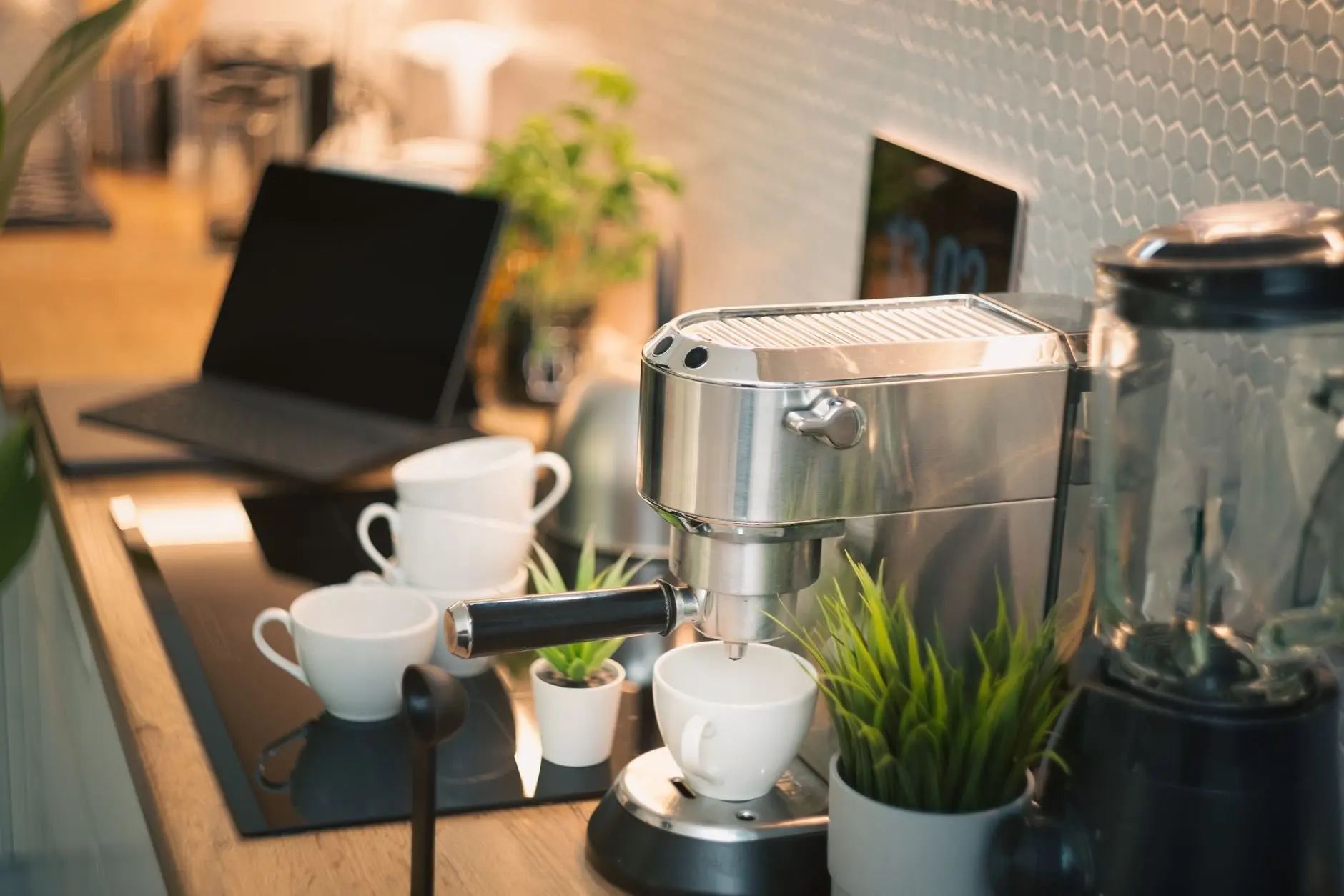
- A morning coffee routine. A scheduled plug can power a coffee maker if the machine starts brewing when it receives power. Check the machine’s behaviour and its rating first, because many appliances need a button press after power returns.
Lights are the other obvious candidate for automation, and for those a bulb may suit better than a plug. The guide to how to set up smart light bulbs covers that route.
Load-safety check before plugging anything in
A smart plug is a switch carrying the appliance’s full power, so the appliance has to suit the plug. The rating printed on the plug and the rating label on the appliance are the reference points. Compare them before you rely on any automation.
- Match the labels. Choose a plug whose printed rating covers the appliance. If the appliance label shows a higher figure or you cannot read it, leave that appliance off the plan.
- Keep unattended automation modest. A lamp or a charger is a gentler candidate than anything with a heating element or a motor that runs on its own.
- Protect what cannot lose power. Leave out anything where an unexpected switch-off causes harm or spoilage, such as refrigeration. A schedule or timer that cuts power is a risk there.
- Check the appliance’s restart behaviour. Some appliances stay off after power returns, so a scheduled plug will not start them.
The same approach applies to heating and cooling equipment, which is better handled by its own control than by a plug. The guide on how to install a smart thermostat explains the dedicated route.
Choosing a smart plug
When comparing smart plugs, the fit with your home network and app matters more than any single feature. The Wi-Fi band is the most important check: a plug limited to 2.4 GHz suits most homes, but it needs a router that still broadcasts that band. Next, check that the plug’s app is one you are willing to use with an account, and that it supports the scheduling and voice features you want.
For a first plug, pick a single well-documented model and pair it before buying more. Once the first one works, extra plugs follow the same routine, and the descriptive names keep a growing list manageable.
A short decision checklist
- Confirm your router offers a 2.4 GHz network.
- Install the app, create the account and, on iOS 14 or later, allow Local Network access.
- Plug in, wait for the orange and green blinking light, then pair and name the plug.
- Test the plug with a lamp before connecting anything else.
- Check the plug’s rating against each appliance label before adding it to a schedule.
Frequently asked questions
How do I set up a smart plug?
Plug it in, open the maker’s app, add a device and wait for the setup light. For a Kasa plug that means blinking orange and green. Then select your 2.4 GHz home network, enter its password and name the plug.
What are good beginner uses for a smart plug?
A lamp on a schedule, Away mode while you are out, a timer on a small appliance and voice control through Amazon Echo or Google Home are all supported by the app’s features. Lamps are the lowest-risk start.
Why won’t my smart plug connect to Wi-Fi?
The usual cause is a 5 GHz network, since the plug supports 2.4 GHz only. Also check that the light blinks orange and green, that iOS Local Network access is on, and that you entered the network name and password correctly. Reset the plug if setup cannot finish.
Why does my phone say there is no internet during setup?
On iOS, the phone joins the plug’s own network, which appears as TP-LINK_Smart Plug_XXXX. That network has no internet, so the warning is expected until you move on to your home network.