| Symptom | First action | Planning use |
|---|---|---|
| Bulb will not appear in the app | Confirm the phone has Bluetooth enabled and sits on the same Wi-Fi network as any hub | Do this before touching the bulb; it fixes the most common stall |
| Pairing fails after an earlier attempt | Power-cycle the bulb with one-second pauses: three times for Tapo, five times for Kasa | Use it when the bulb was already paired or half-paired |
| Bulb does not blink to confirm a reset | Repeat the power-cycle sequence and wait for three blinks | Treat the blinks as the checkpoint before re-pairing |
| Third-party app cannot add the bulb | Check that a Matter hub is present and the bulb was added within the time window after power-on | Decide whether the vendor app alone is enough for you |
| Bulb unresponsive after the lamp is switched off | Switch the lamp or wall switch back on and leave it on | Keep the switch on as a household habit |
The first two rows rest on TP-Link’s Matter setup guidance, and the general basic checks follow a beginner smart lighting walkthrough.
This guide shows how to set up smart light bulbs: fit the bulb, switch it on, pair it in the maker’s app, and reset it only if pairing stalls.
Lighting is usually the easiest first device, and it fits into the wider job of how to set up a smart home. A lamp that cannot take a smart bulb is a separate case, covered in how to set up a smart plug.
Choosing a bulb and checking the fit
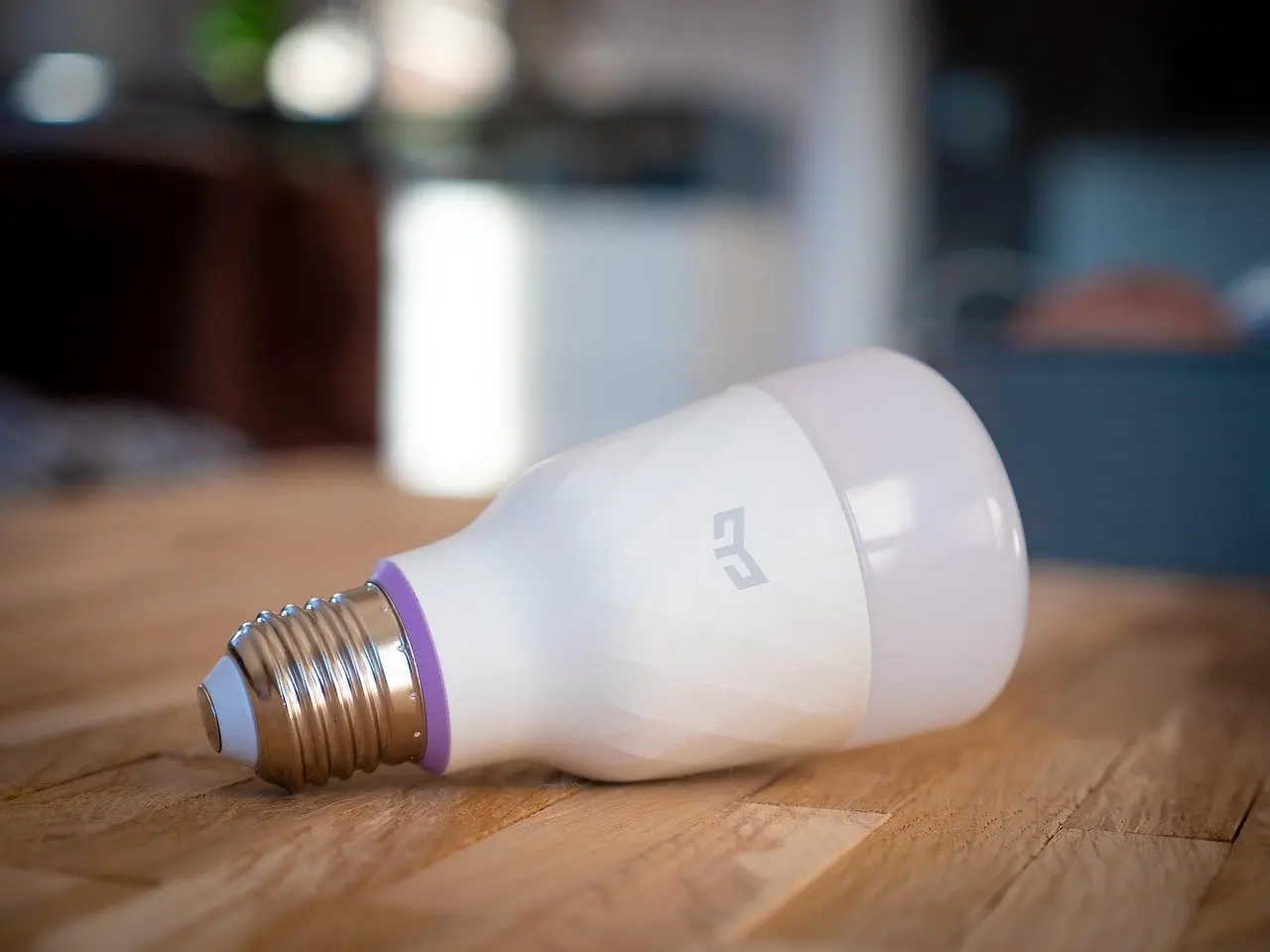
A smart bulb is a bulb you control from an app, and the right one for a beginner is the one that matches the system you already use. A beginner smart lighting guide advises checking compatibility with Google Assistant, Alexa or HomeKit before buying. The same guide lists dimming, colour changes and scheduling as the usual app-controlled features.
Matter bulbs are the safest choice if you may change platforms later. TP-Link describes Matter as a unified smart home protocol that lets devices from different brands work together, and says its Matter devices work with Alexa, Google Home, Apple Home and SmartThings. For a first bulb, pick a Matter-labelled model from a maker with a clear setup guide, then use that maker’s own app first.
Base fit
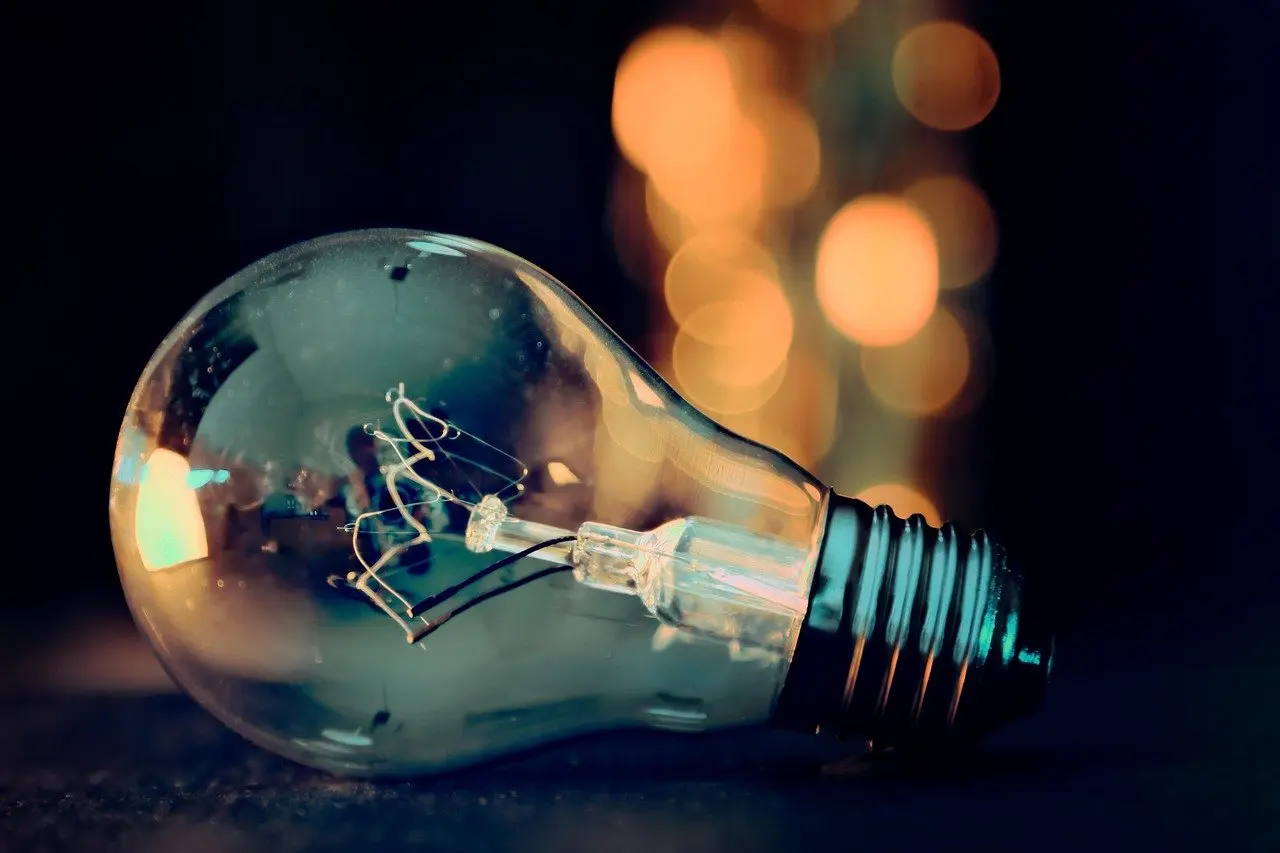
Smart bulbs use the same kinds of base as ordinary bulbs, so the base must match the socket before anything else. Compare the new bulb’s base with the old bulb you are replacing and with the fixture’s socket, and check the packaging for the base type and brightness equivalent. A bulb that screws in loosely or only partway is the wrong base, not a smart-home fault.
Installing the bulb and powering it on
Installation is the same as for any bulb: switch the fixture off, screw the bulb in until it seats, and switch the fixture on. The bulb must have power before the app can find it, so pairing starts here. Use a fixture you can reach easily, since a reset later means switching power on and off repeatedly.
Leave any wall or lamp switch on once the bulb is lit. If you intend to use a Matter setup code, note where it is before the bulb is screwed in. On a smart bulb, TP-Link places the code in the middle of the casing, between the light sphere and the bulb base, which is hard to read once the bulb is in a tight shade.

Pairing the bulb in the app
The simplest route is the maker’s own app. For its Matter devices, TP-Link says there are two ways to set up: through the official TP-Link app (Tapo or Kasa), which it recommends, or through a third-party Matter app. Start with the official app and add other platforms afterwards.
- Install the app. Download the maker’s app and create or sign in to an account.
- Join Wi-Fi first. Put the phone on your home Wi-Fi network and enable Bluetooth, since the bulb is found over Bluetooth during setup.
- Switch the bulb on. Confirm the bulb is lit, then choose the add-device option in the app.
- Scan or enter the code. Use the setup code on the casing; it can also be found in the Tapo or Kasa app.
- Name the bulb. Give it a room-based name so voice and scheduling commands stay readable later.
Each step above follows the pattern in TP-Link’s Matter setup instructions. Other brands use similar flows, so follow the packaging’s app name for a different make.
Adding the bulb to another app or hub
Adding the bulb to a second platform is optional, and it is where hubs come in. TP-Link states that a Matter hub, also called a Matter controller, is required to use a Matter-enabled device with most third-party smart home apps. If you are weighing whether to buy one, do I need a smart home hub sets out the decision.
After setting up in Tapo, a bulb can be added to a third-party Matter app within a 15-minute window from power-on, according to the same guide. Do this straight after pairing rather than later.
Using Apple Home without a hub
Apple Home can add Matter devices without a hub on iOS 18 or later, with trade-offs. TP-Link notes you will not be able to control accessories remotely, share control with others or use automations in that setup. That suits a single-room test, but not a household that wants schedules.
Bulbs without a hub
Smart bulbs can work without a hub when you stay in the maker’s own app, which is also the recommended route. A hub becomes necessary when you want most third-party apps to control the bulb. Beginners can start with the app alone and add a hub only if a platform requires it.
Fixing a smart bulb that will not connect
Most failures come down to the phone, the network or leftover pairing state, and the integratetx guide notes that most issues can be resolved by checking Wi-Fi connections, restarting devices or updating software. Work down the checks below in order and stop as soon as the bulb responds.
Symptom: the bulb never shows up in the app
- Check Bluetooth. TP-Link’s third-party setup steps ask you to confirm that Bluetooth is enabled on the phone.
- Check the network. Make sure the phone and the hub are connected to the same Wi-Fi network, and that the network itself is stable.
- Restart the pieces. Restart the phone app and the router before changing anything on the bulb.
Symptom: pairing fails or the bulb was set up before
A bulb that still holds an earlier pairing needs a reset before it will accept a new one. TP-Link’s method is to switch power off and on with one-second pauses, three times for Tapo bulbs or five times for Kasa bulbs, then wait for the bulb to blink three times to confirm. If it does not blink, repeat the sequence slowly and evenly. Once it has blinked, pair it as a new device.
Symptom: the bulb works, then goes dead
A bulb controlled from a phone still depends on its switch. The reset method itself works by cutting power, so a flipped wall switch or lamp switch will interrupt it in the same way. Keep the switch on, label it if others use the room, and keep the bulb’s own control for the app. Where a switch keeps getting flipped, the integratetx guide offers another route in smart switches.
Frequently asked questions
| Question | Answer |
|---|---|
| Does removing a bulb from the app reset it? | Yes for Matter-enabled TP-Link bulbs: removing the device from the Tapo or Kasa app triggers a factory reset, so expect to pair it again from scratch. |
| What can a smart bulb do from the app? | The integratetx guide lists dimming, colour changes and scheduling, all controlled through an app. |
| What happens if the hub goes offline? | A Matter-enabled device controlled through a hub becomes unresponsive, and control returns once the hub reconnects to the router, per TP-Link’s Matter guide. |
| Is there an alternative to smart bulbs? | Smart switches replace existing switches and provide control over regular bulbs or fixtures, as the integratetx guide explains. |